> ## Documentation Index
> Fetch the complete documentation index at: https://moengage-docs-limits-personalize.mintlify.site/llms.txt
> Use this file to discover all available pages before exploring further.
# Limechat
# Introduction
LimeChat helps e-commerce brands sell, support, and market on WhatsApp. Limechat help reduce CAC, boost retention, and deliver amazing experiences through WhatsApp. Limechat offers
* GPT-powered Chatbots for Human-level Experiences
* 2-way WhatsApp Campaigns for 2x RoI without spamming
* AI-enabled CRM built for e-commerce.
# MoEngage × Limechat
The MoEngage and Limechat integration allows you to seamlessly orchestrate the end-to-end customer lifecycle from initial outreach, routed into a conversational experience, and through to omnichannel follow-up(s) via intelligent retargeting. With this integration, you can:
* Trigger Limechat campaigns from MoEngage
* Receive User behaviour events from Limechat to MoEngage
# Integration
* Ensure you have a Limechat account.
* Ensure you have access to your Limechat access token. You can access from your Limechat dashboard by navigating to Profile > Profile Settings > Access token
## Trigger Limechat campaigns from MoEngage
### Step 1: Get your Limechat account id and access token
#### Get your Limechat account id
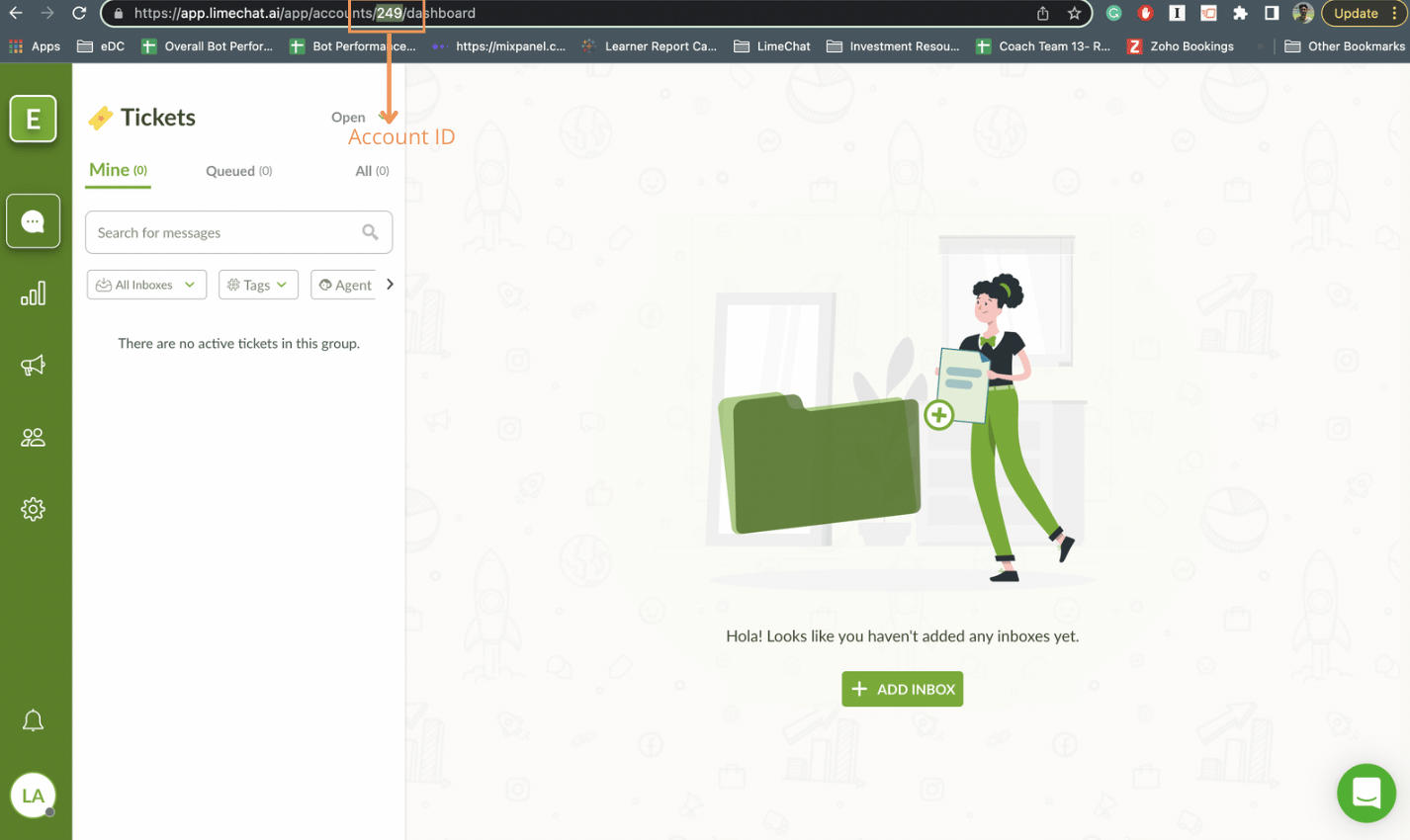
On the Limechat Dashboard, copy the account id from your URL
 #### Get your Limechat access token
On the Limechat Dashboard,
1. Click on the profile picture at the extreme bottom left
2. Click on **Profile Settings**
3. Scroll down to the bottom of this page and copy the Access Token
#### Get your Limechat access token
On the Limechat Dashboard,
1. Click on the profile picture at the extreme bottom left
2. Click on **Profile Settings**
3. Scroll down to the bottom of this page and copy the Access Token 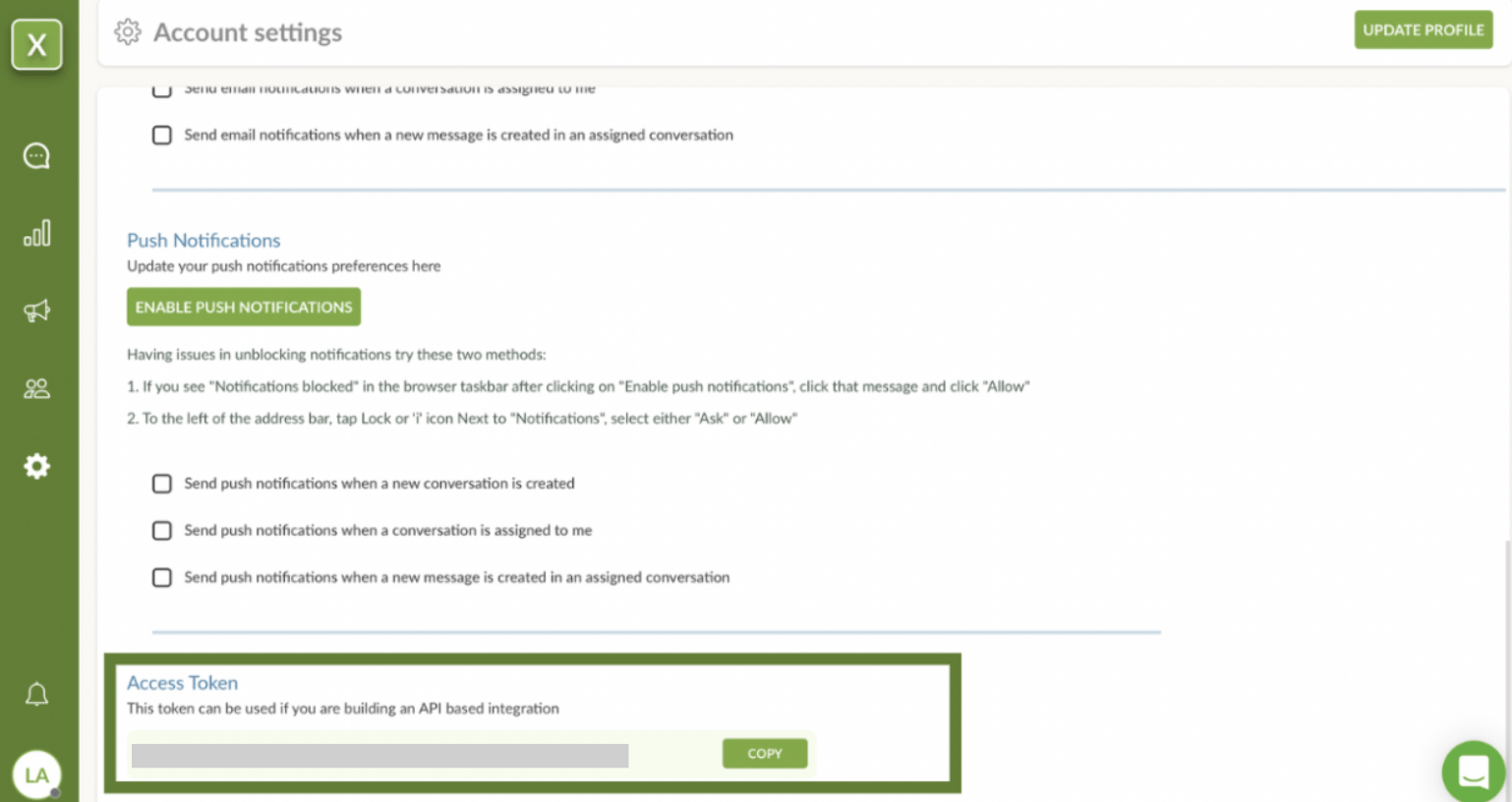 ### Step 2: Create a connector campaign on MoEngage
To create a connector campaign on MoEngage,
1. Navigate to Create Campaign > Connectors > Custom and choose delivery type most suitable to your needs
### Step 2: Create a connector campaign on MoEngage
To create a connector campaign on MoEngage,
1. Navigate to Create Campaign > Connectors > Custom and choose delivery type most suitable to your needs 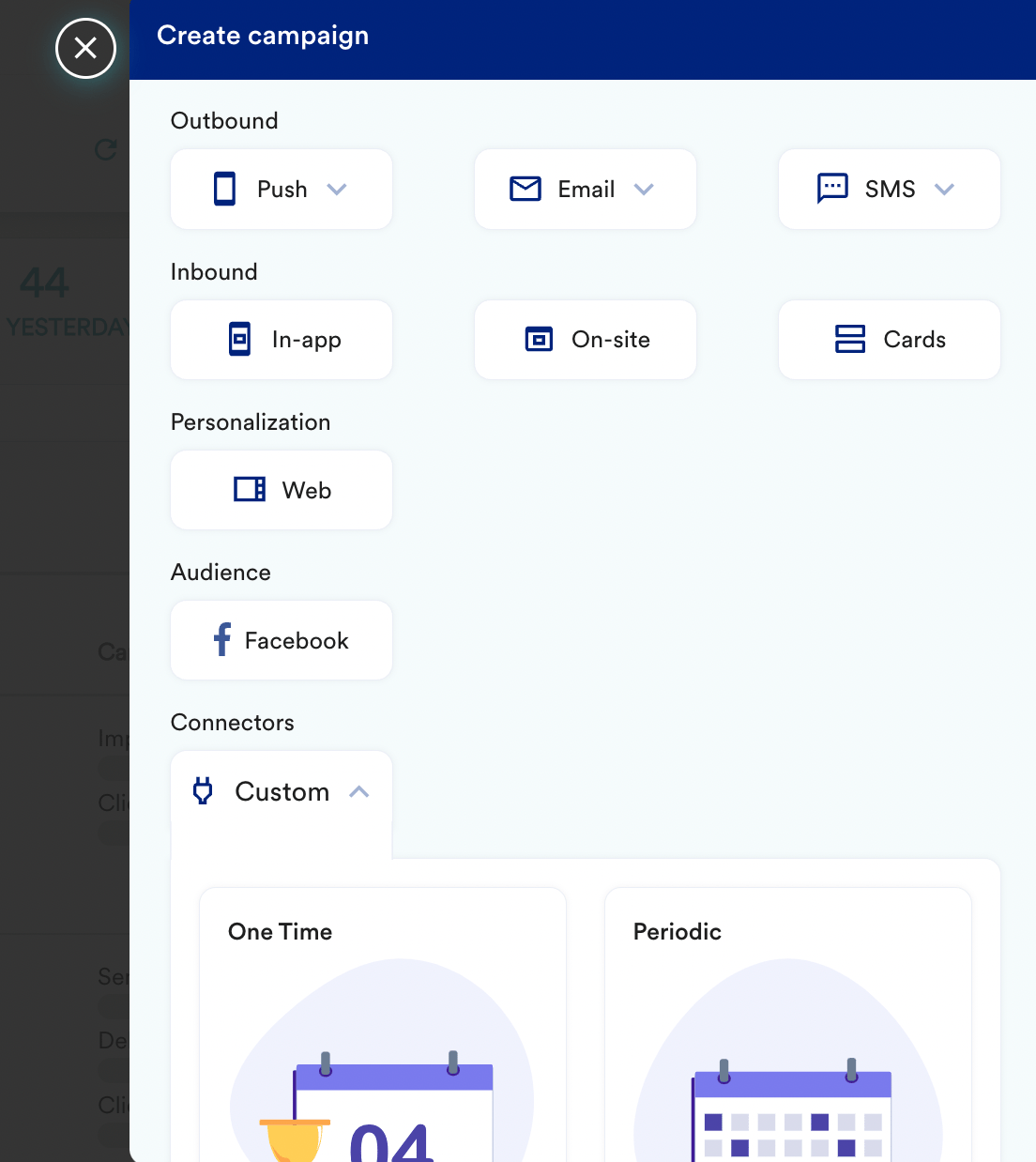 2. On step 2 of the campaign
* Select method as POST
* Add Webhook URL as : `https://app.limechat.ai/api/v1/accounts/{account_id}/store_notifications/create_notification_limekit/`
Here {account_id} with the account ID copied in Step 1.
* In Headers, add
* Content-Type as application/json
* api\_access\_token as your `{Limechat access token}` copied in Step 1.
In Body, choose Raw and copy paste the code.
```json theme={null}
{
"phone": {{UserAttribute['Mobile Number (Standard)'\]}},
"template_id": "112",
"first_name": "{{UserAttribute['FirstName']}}",
"email": {{UserAttribute['email']}},
"template_attributes": [
"Akshay",
"[https://app.limechat.ai/](https://app.limechat.ai/)"
],
"status": "closed",
"additional_attributes": {},
"contact_additional_attributes": {},
"label": ""
}
```
3. At this point, your campaign should be ready to test and send. You can also test your connector configuration using the Test functionality available on Step 2 of Create Connector Campaign.
2. On step 2 of the campaign
* Select method as POST
* Add Webhook URL as : `https://app.limechat.ai/api/v1/accounts/{account_id}/store_notifications/create_notification_limekit/`
Here {account_id} with the account ID copied in Step 1.
* In Headers, add
* Content-Type as application/json
* api\_access\_token as your `{Limechat access token}` copied in Step 1.
In Body, choose Raw and copy paste the code.
```json theme={null}
{
"phone": {{UserAttribute['Mobile Number (Standard)'\]}},
"template_id": "112",
"first_name": "{{UserAttribute['FirstName']}}",
"email": {{UserAttribute['email']}},
"template_attributes": [
"Akshay",
"[https://app.limechat.ai/](https://app.limechat.ai/)"
],
"status": "closed",
"additional_attributes": {},
"contact_additional_attributes": {},
"label": ""
}
```
3. At this point, your campaign should be ready to test and send. You can also test your connector configuration using the Test functionality available on Step 2 of Create Connector Campaign.  If your test user successfully receives the message, your set-up is good to go. You can go ahead and Publish the campaign.
## Receive User Behavior events from Limechat
### Step 1: Get your MoEngage endpoint
Speak to your MoEngage Customer Success Manager to help you get a dedicated endpoint for Limechat.
### Step 2: Set up the webhook in Limechat
Provide this webhook along with the following information to your Limechat Customer Success Manager:
| Field | Description |
| --------- | ----------------------------------------------------------------------------------------------------------------------------------------------------------------------------------------------------------------------------------------------------------------------------------------------------------------------------------------------------------------------------------------------------------------------------------------------------------------------------- |
| Webhook | The MoEngage Endpoint provided to you by your Customer Success Manager. Headers |
| Header(s) | Provide the following headers:
If your test user successfully receives the message, your set-up is good to go. You can go ahead and Publish the campaign.
## Receive User Behavior events from Limechat
### Step 1: Get your MoEngage endpoint
Speak to your MoEngage Customer Success Manager to help you get a dedicated endpoint for Limechat.
### Step 2: Set up the webhook in Limechat
Provide this webhook along with the following information to your Limechat Customer Success Manager:
| Field | Description |
| --------- | ----------------------------------------------------------------------------------------------------------------------------------------------------------------------------------------------------------------------------------------------------------------------------------------------------------------------------------------------------------------------------------------------------------------------------------------------------------------------------- |
| Webhook | The MoEngage Endpoint provided to you by your Customer Success Manager. Headers |
| Header(s) | Provide the following headers: - Content-Type: application/json
- Authorization: Get your Basic Token by going to any online [Basic Auth Header Generator](https://www.debugbear.com/basic-auth-header-generator) tool. Enter your Workspace ID as username and Data API Key as password. Your final token should look like this (MoEngage Dashboard >> Settings >> APIs): `Basic Qk5CR1NNNUR4eHh4eHhWQ1hSRFJEWTdSOlFsWHVoTHVaeHh4eHh4QWQrQnBYUEotNw==`
|
### **Step 3: See the events in MoEngage**
Once the webhook is set up in Limechat, you should be able to see these events in your MoEngage dashboard.
#### **Supported events**
| Event | Event Code | Description |
| -------------------------------------- | ------------------------- | ----------------------------------------------------- |
| Message Status Update Event | lc\_message\_status | Update message status for a specific flow and node. |
| Button Interaction | lc\_button\_clicked | Notify a Button Interaction. |
| Opt Out | lc\_user\_wa\_opt\_out | Notify when a user opts out from a brand. |
| Conversational & Contact Tag by agents | lc\_tag\_added\_by\_agent | Link clicks will only work if LimeChat shortens them. |
| Opt In | lc\_user\_wa\_opt\_in | Notify when a user opts in from a brand |